Recording
Record your screen
Choose a display, a window or an area, record from the floating bar, and pause or stop whenever you want. When you stop, the editor opens with your clip.
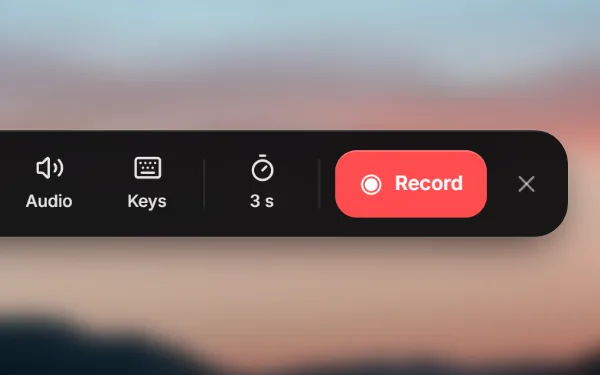
Click New recording on the home screen (the first time, Make my first recording). OnScreen hides its window and shows the recording bar at the bottom of the screen. The bar stays above your other windows and isn’t part of the video.
Choose what to record
- Display: the whole screen. If you have more than one, click Display to choose which.
- Window: click it and choose from Pick a window to record. If that window closes while you record, the recording stops.
- Area: drag a rectangle on the screen and click Use area (or press Enter). Esc cancels. The area becomes the clip’s crop, so you can adjust it later in the editor.
Next to these are your camera, microphone and system audio, Keys for logging keystrokes, and the timer for the countdown before recording: No timer, 3 s, 5 s or 10 s. It starts at 3 seconds. OnScreen remembers your choices for next time.
Record
- Click Record.
- The bar shows Recording in and counts down.
- It turns into a small control bar with the time. Do what you want to show.
The control bar has these buttons:
- Stop (the red square) finishes the recording. Shortcut: Ctrl + Shift + 2 (on Mac ⌘ + Shift + 2).
- Pause and Resume: Ctrl + Shift + 1 (on Mac ⌘ + Shift + 1).
- Start over throws away what you recorded and starts again after a 3-second countdown.
- Discard throws away the recording and takes you back to the bar.
Each pause closes a piece of the recording, and resuming starts a new one. In the editor, every piece is its own clip.
After you stop
OnScreen shows Preparing your recording… and opens the editor. Zooms are already placed where you clicked, and the keystroke layer is ready, hidden until you turn it on in the Keystrokes panel.
To add more to the same project, click Record clip at the top of the editor. The new clip goes at the end, with the same look as the one before it.
Tip: If you close the bar without recording anything, OnScreen removes the new, empty project from your list.
Next step
Can't find what you need? Write to us