Audio and captions
Click and key sounds
Add the sound of typing, mouse clicks and the scroll wheel to your video. Pick a style, listen to it and set the volume.
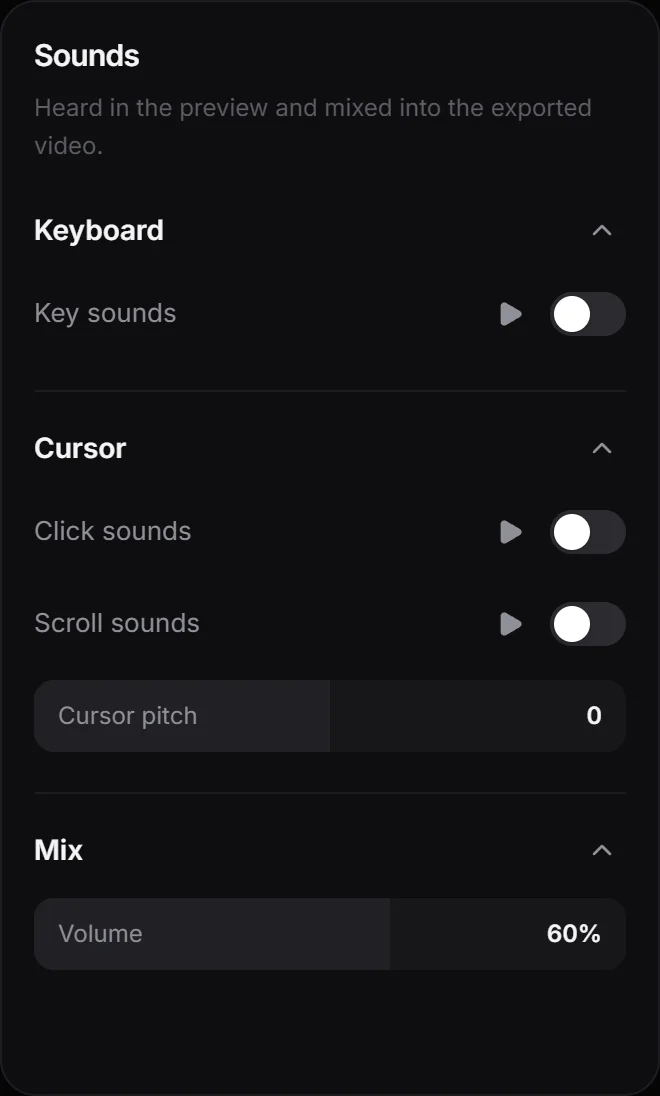
The Sounds panel adds keyboard, click and scroll sounds at the moments you typed, clicked and scrolled during the recording. They’re heard in the preview and mixed into the exported video. They’re off until you turn them on, and the settings apply to the whole project.
Open the Sounds panel from the panel bar to the right of the preview.
Keyboard
Turn on Key sounds and pick a style: Mechanical, Laptop or Typewriter.
Key sounds need to know which keys you pressed, so they only work if Keys (Record keystrokes) was on when you recorded. If it wasn’t, the panel tells you the recording has no logged keys. Click sounds work anyway.
Cursor
- Click sounds plays a click each time you pressed the left or right mouse button. Choose Mouse or Soft.
- Scroll sounds adds a small tick for each notch of the scroll wheel.
- Cursor pitch makes the click and scroll sounds higher or lower, up to 12 semitones either way.
Listen and adjust
Each switch has a play button next to it, Listen, so you can hear the sound before you turn it on. Changing the style or the pitch also plays a sample.
Volume, under Mix, sets how loud all these sounds are in the video. It starts at 60%.
Next step
Show the keys you press on screen as well.
Can't find what you need? Write to us