Zoom
Zoom settings
Set how far each zoom goes in, how close it can get to the edges and how fast it moves in and out. Then save the settings you like for new zooms.
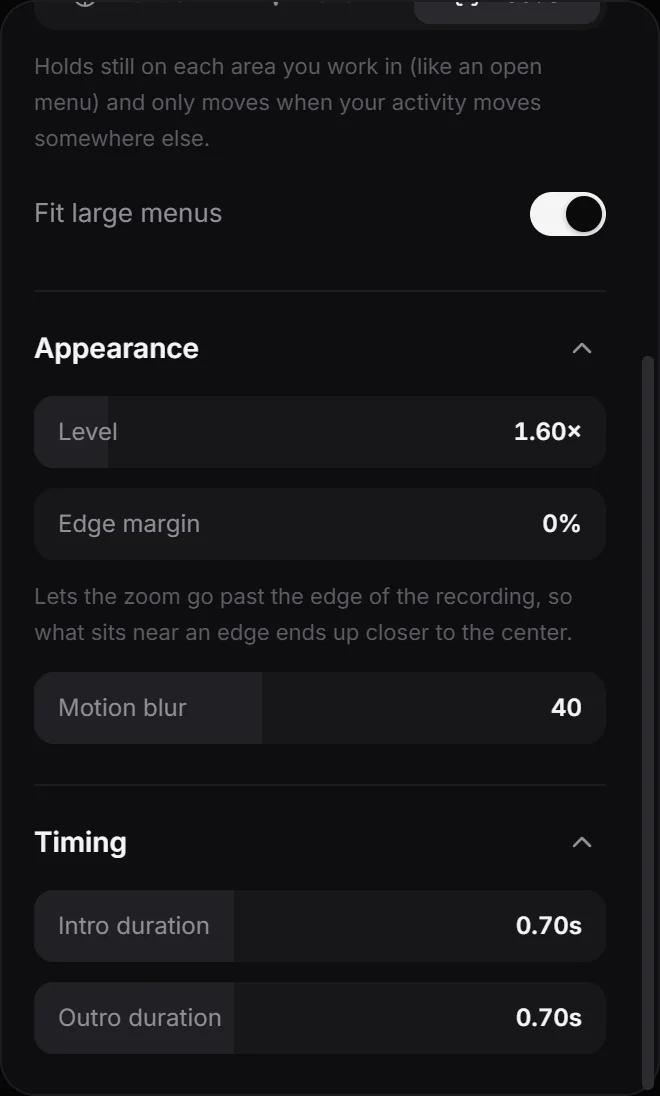
Select a zoom on the timeline to see its settings in the Zoom panel. With nothing selected, the same settings apply to all your zooms (see Zoom modes).
Appearance
- Level sets how far the zoom goes in, from 1.10× to 5×. New zooms start at 2×.
- Edge margin lets the zoom go past the edge of the recording, so what sits near an edge ends up closer to the center. At 0% the view always stays on the recording. The view never goes past the edge of the video itself, so how far it can move depends on how much background shows around the recording.
- Motion blur blurs the picture while the camera moves in, out or across. Set it to 0 to turn it off.
Timing
- Intro duration is how long the camera takes to zoom in, up to 2 s.
- Outro duration is how long it takes to zoom back out.
Both start at 0.70 s. Set one to 0 to zoom in or out at once, with no movement.
When one zoom ends right where the next one starts, the camera doesn’t zoom out between them. It moves straight to the next zoom, taking that zoom’s intro duration to get there.
Save your settings
Select a zoom you like and click Set as default at the bottom of the panel. The zooms you add from then on, in any project, start with its mode, level, edge margin, motion blur, timing and Fit large menus setting. Automatic zooms use these settings too, except the mode: they always start in Focus.
Changes you make with nothing selected work the same way: besides changing every zoom in the project, they become the settings for new zooms.
Next step
Adjust the cursor: its size, smoothing and click animation.
Can't find what you need? Write to us