Audio and captions
Reduce background noise
Clean the sound of a fan or the air conditioning out of your microphone and keep your voice. You turn it on per clip, and the original stays untouched.
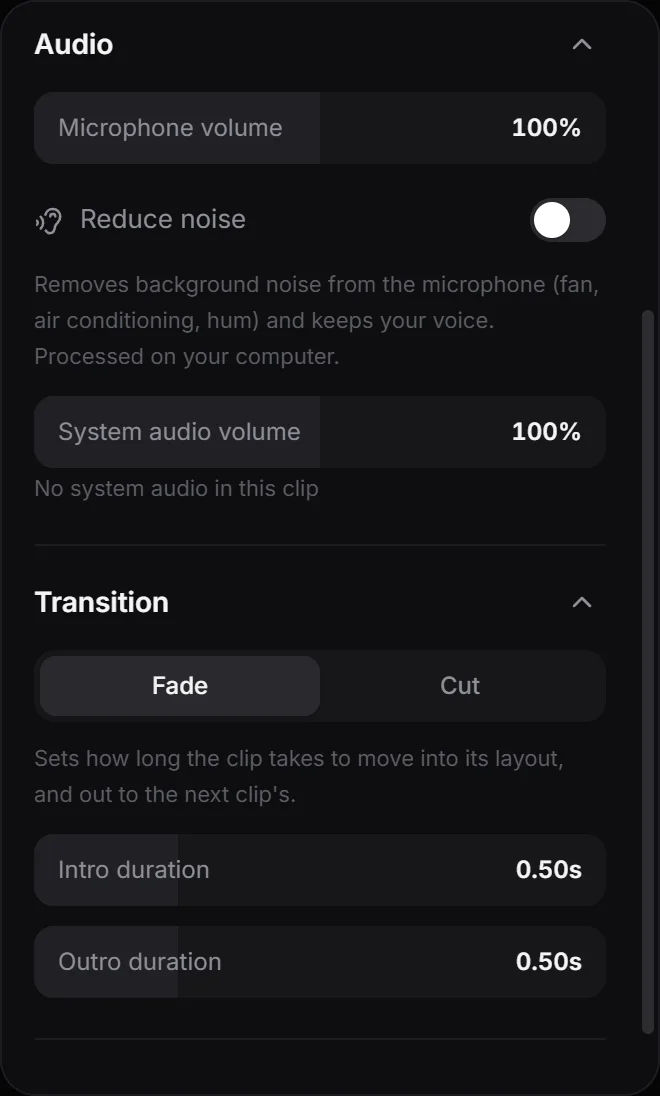
Reduce noise removes background noise from your microphone, like a fan, the air conditioning or a hum, and keeps your voice. It’s processed on your computer, with nothing to download. It doesn’t remove every sound, so play the clip to hear the result.
Turn it on
- Select the clip on the timeline.
- Open the Clip panel: click its icon in the panel bar, or right-click the clip and choose Clip settings.
- In Audio, turn on Reduce noise.
The switch only appears when the clip has a microphone. If it doesn’t, the panel says No microphone in this clip.
The first time
The first time, OnScreen cleans up the microphone of that recording. While it works, the panel says Cleaning up the microphone audio… and the preview plays the original microphone. If you export in the meantime, OnScreen waits for it to finish first.
OnScreen saves the cleaned copy next to the recording and leaves the original as it is. That’s why you can turn Reduce noise off at any time and get the original sound back. Once the copy exists, turning it on again is instant, and so is turning it on for other clips from the same recording.
If something goes wrong, you’ll see The audio couldn’t be cleaned up. The original microphone is used.
What it changes
- The preview and the exported video both play the cleaned voice.
- Microphone volume still works as usual.
- It’s set per clip, so you can clean one part of the video and leave the rest alone.
- If you split a clip, both parts keep the setting.
- System audio isn’t touched.
Next step
Add click and key sounds to your video.
Can't find what you need? Write to us