Editing
The timeline
Split, trim and change the speed of your clips, and select, move and delete everything on the timeline at the bottom of the editor.
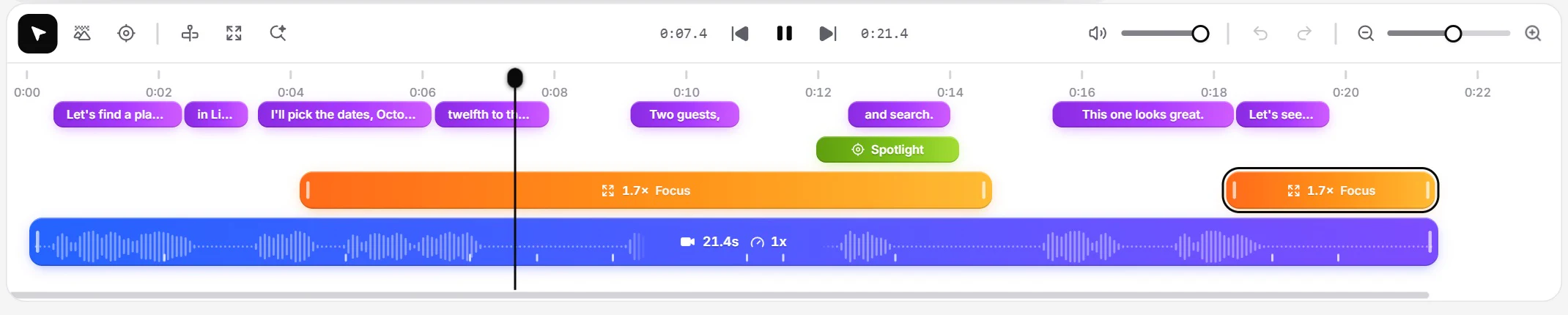
The timeline runs along the bottom of the editor. Clips sit on the bottom row, with their sound wave and marks where you clicked while recording. Above them are the zooms and, when you use them, spotlights, masks, keystrokes and captions.
Move the playhead
- Click the ruler at the top, or drag along it.
- Space plays and pauses.
- ← and → move one frame. Hold Shift to move one second.
To zoom the timeline, hold Ctrl (⌘ on Mac) and turn the mouse wheel, pinch on a trackpad, or use the slider at the right of the toolbar.
Split and trim
- Put the playhead where you want to cut.
- Press S, or click Split at playhead in the toolbar.
With nothing selected, this splits the clip under the playhead. With items selected, it splits each one that crosses the playhead.
To trim, drag the left or right edge of a clip. Nothing is thrown away: drag the edge back out to bring the footage back. Zooms and the other rows stay tied to their moment in the recording, so trimming doesn’t shift them.
Speed
Right-click a clip and pick a value under Speed (0.5× to 2×), or open the Clip panel for buttons up to 3× and a slider from 0.25× to 4×.
Select and delete
- Click an item to select it. Drag across an empty area to select several with a rectangle.
- Shift + click selects a range. Ctrl + click (⌘ + click on Mac) adds or removes one item.
- Delete or Backspace deletes the selection, and Esc clears it.
Drag a zoom, mask or caption to move it, or drag its ends to change how long it lasts.
Right-click any item for its menu: Split here, Split at playhead, Go to start, the settings for that kind of item, Select all clips (or zooms, masks…) and Delete.
Undo and redo
Ctrl + Z undoes and Ctrl + Shift + Z redoes (⌘ + Z and ⌘ + Shift + Z on Mac). The arrow buttons in the toolbar do the same. OnScreen saves your project as you go.
Tip: You can change the one-key shortcuts (Space, S and the rest) in Settings ▸ Shortcuts.
Next step
Can't find what you need? Write to us