Editing
Background and style
Frame your recording with padding, rounded corners and a shadow, crop it, and put a gradient, color, wallpaper or photo behind it.
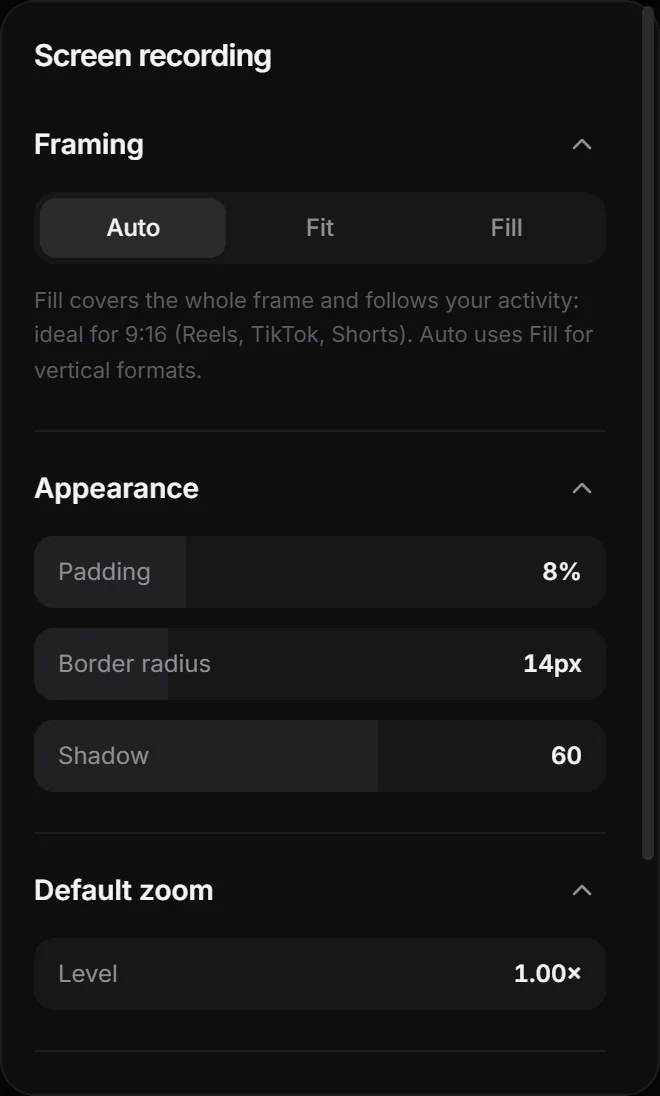
Two panels on the right of the editor set the look of your video: Screen recording and Background. They change the selected clip or, when nothing is selected, the clip under the playhead.
Screen recording
- Framing: Fit shows the whole recording with the background around it. Fill covers the whole frame and follows your activity. Auto uses Fill when the frame is much narrower than the recording, as in a 9:16 video of a widescreen recording, and Fit otherwise.
- Appearance: Padding is the space around the recording (8% to start), Border radius rounds its corners (14 px) and Shadow sets the shadow under it (60 out of 100).
- Default zoom: a zoom for the whole clip, used whenever no zoom from the timeline is playing. Set its Level from 1× to 3×. Above 1×, click the image to choose the point it centers on.
- Crop: click Crop video, drag the rectangle or type how many pixels to remove from each edge, and click Apply. Crop removes parts of the frame, like the taskbar. It never removes time.
Background
Choose a type at the top of the Background panel:
- Gradient: six ready-made gradients. Under Colors you can change each color, use up to five with Add color, and turn the gradient with Angle.
- Color: one of the swatches, or any color from the picker or its hex code.
- Wallpaper: the wallpapers that come with Windows or macOS.
- Photo: click + to add your own JPG, PNG or WebP images. OnScreen keeps a copy, and they’re offered in every project.
With Wallpaper and Photo, the Blur slider softens the image.
Use the same look on other clips
The bottom of each panel has two buttons:
- Reuse these settings copies the panel to every clip after this one. It shows up when there are clips after it.
- Set as default saves the panel as the starting look for new projects.
Tip: A new clip you record into a project starts with the look of the clip before it, crop included when you record the same display again.
Next step
Can't find what you need? Write to us