Highlight and hide
Highlight an area with Spotlight
Draw attention to part of the screen. Spotlight frames an area, or dims or blurs everything around it, and can add an arrow that points at it.
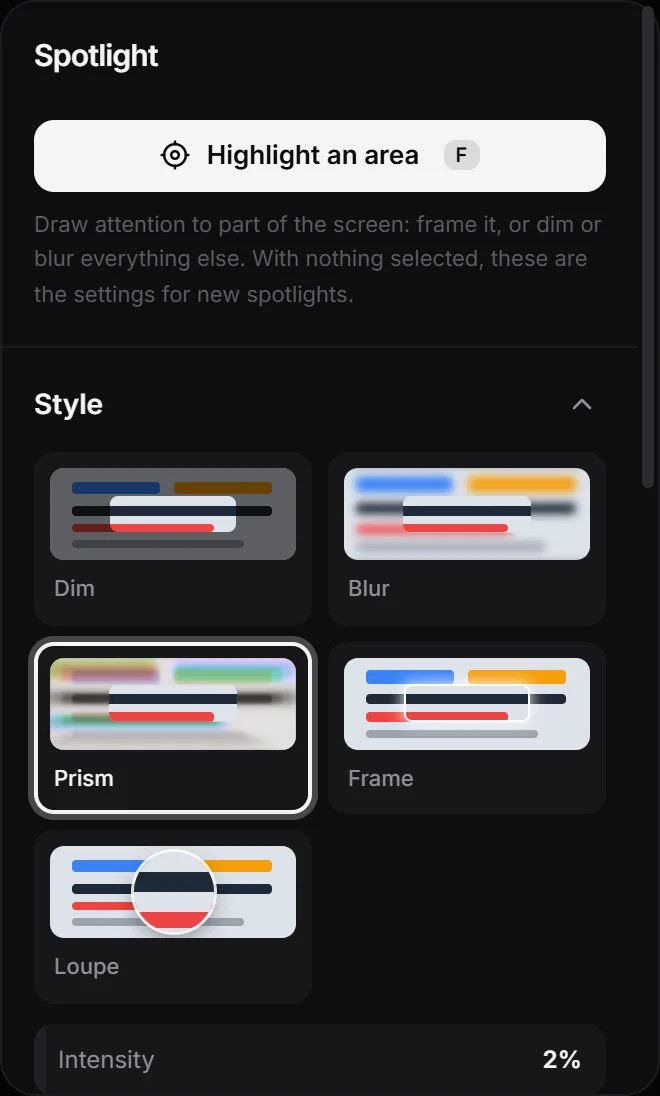
Spotlight draws attention to one part of the screen. Each spotlight sits on the timeline, so you choose exactly when it appears and for how long.
Draw a spotlight
- Move the playhead to where the spotlight should start.
- Open the Spotlight panel on the right and click Highlight an area, or press F.
- Drag on the video over the area you want to highlight.
The new spotlight lasts 3 seconds, or less if the clip ends first. Drawing stays on so you can mark more areas: press F again or Esc to stop. You can change the key in Settings ▸ Shortcuts.
To adjust a spotlight, select it. Drag its box on the video to move it, or drag the corner to resize it. On the timeline, drag the bar to move it in time, or drag its edges to make it longer or shorter. Press Delete to remove it.
Styles
- Dim darkens everything else. Darkness sets how much.
- Blur blurs everything else. Its Blur slider sets how much.
- Prism blurs everything else in streaks that spread out from the area, with rainbow edges. Adjust it with Intensity.
- Frame only draws a frame around the area.
- Loupe shows the area magnified under a glass lens. See Loupe.
Corner radius rounds the corners of the area, and Fade makes the spotlight fade in and out instead of popping.
In the Frame section, pick the frame color and its Width. Dim, Blur and Prism can drop the frame with Show frame. New spotlights start with Dim and a yellow frame.
Arrow
Turn on Arrow to point at the area, then pick its color, Curve and Width. With the spotlight selected, drag the blue dots on the video: one moves the tail, the other bends the arrow. OnScreen puts the tail beside the area, on the side with more room. If you move it, Place automatically puts it back.
Defaults
With no spotlight selected, the panel edits the settings for new spotlights. With one selected, Set as default saves its look for the next ones.
Next step
Can't find what you need? Write to us