Zoom
Zoom modes
Each zoom has a mode that decides where the camera looks: Manual, Follow or Focus. Learn how to add zooms and edit one, several or all of them.
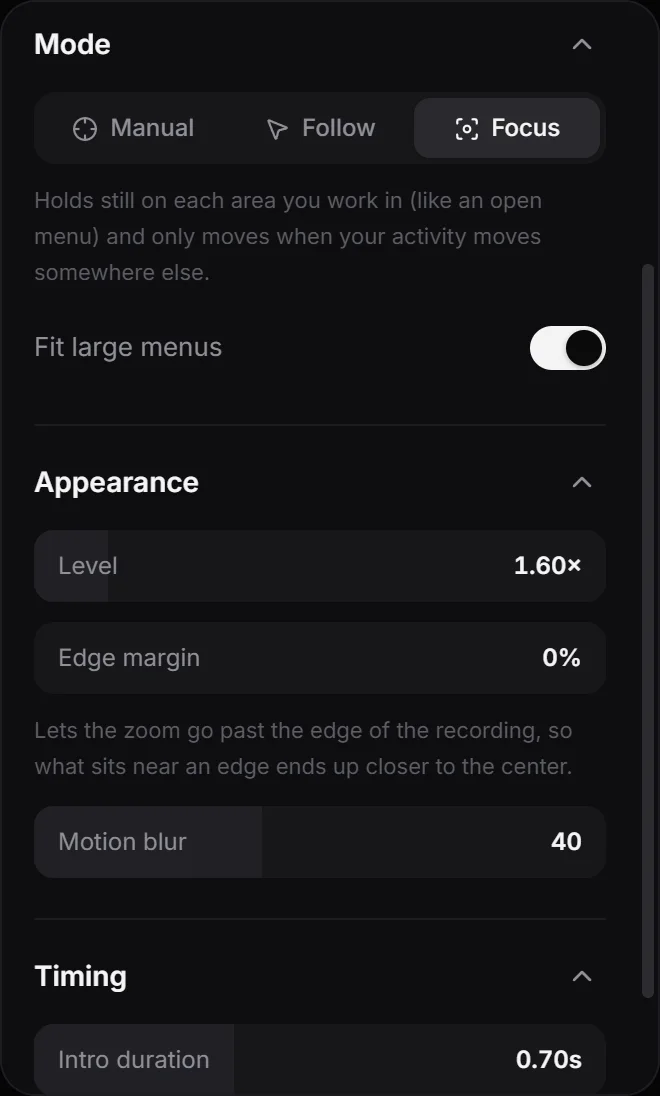
Every zoom on the timeline has its own mode. Select a zoom and choose the mode in the Zoom panel, under Mode.
The three modes
- Manual zooms into a fixed point you choose. Click or drag on the picture of the recording that appears below the modes to place the point. The two buttons under it center the point horizontally or vertically.
- Follow pans to keep the cursor in view, staying close to it as it moves.
- Focus holds still on each area you work in, like an open menu, and only moves when your activity moves somewhere else. It looks at your clicks, the menus they open and the places where the cursor rests. With Fit large menus on, it zooms in a little less when something is too big to fit in the view.
To change the mode of several zooms at once, select them, right-click one and pick a mode under Mode.
Add a zoom
- Move the playhead to where the zoom should start and click Add zoom, in the Zoom panel or in the toolbar above the timeline.
- Or move the playhead and press Z. You can change this key in Settings ▸ Shortcuts ▸ Editor.
- Or click an empty spot in the zoom row of the timeline. When you point at it, you’ll see Add zoom. The zoom starts where you click.
A new zoom lasts 3 s, or less if another zoom or the end of the clip comes first, and it uses your default settings. Drag its ends on the timeline to change its length, or drag the whole zoom to move it.
Edit one zoom or all of them
What the Zoom panel changes depends on what’s selected:
- Zooms selected: click a zoom on the timeline to select it. Shift+click selects a range and Ctrl+click adds to the selection. At the top of the panel, choose Selected to edit only those zooms, or All to edit every zoom.
- Nothing selected: the panel shows All zooms. Changes apply to every zoom in the project and to the zooms you add later.
To delete the selected zooms, press Delete or click Delete zoom at the bottom of the panel.
Next step
Adjust the level, edges and timing of your zooms.
Can't find what you need? Write to us