Highlight and hide
Show your keystrokes
OnScreen saves the keys you press while you record and can show them in the video as keycaps, along with your clicks and scrolling.
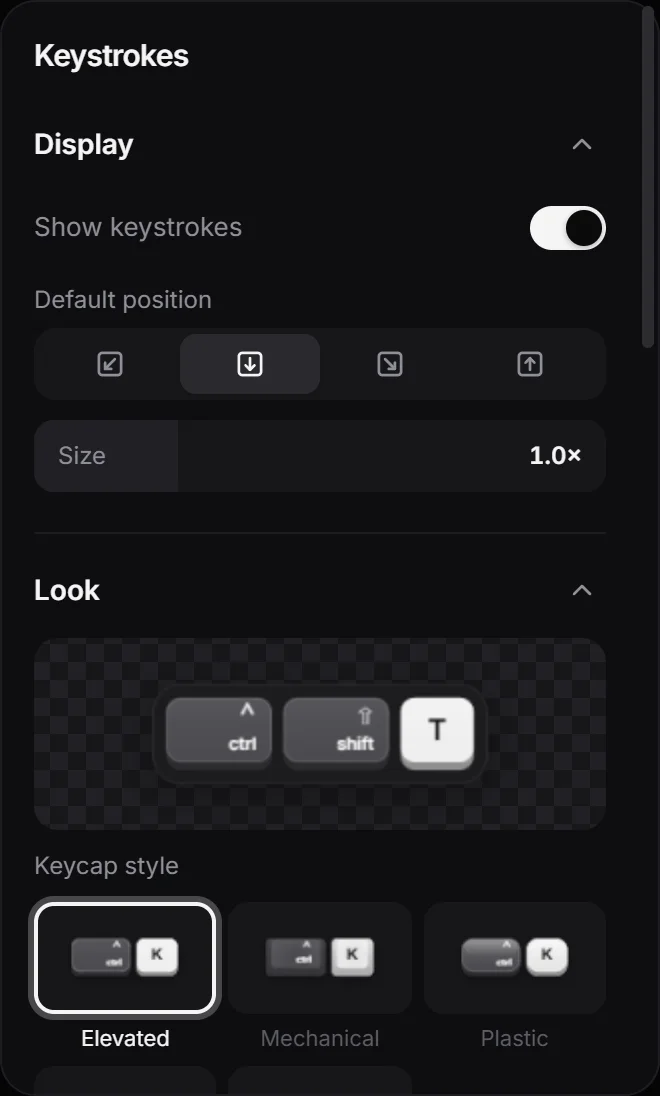
Showing the shortcuts you press makes a tutorial easier to follow. OnScreen saves your key presses while you record and turns them, together with your clicks, into a keystroke layer.
Record your keys
Before you click Record, check that Keys is on. It’s next to Audio, in the bar where you choose what to record, and it’s on by default. While it’s on, everything you type is saved with the recording.
On a Mac, logging keys needs the Input Monitoring permission. macOS asks for it the first time you record with Keys on. You can also turn OnScreen on in System Settings ▸ Privacy & Security ▸ Input Monitoring.
Tip: Turn off Keys before you record yourself typing a password.
Show them in the video
OnScreen builds the layer the first time you open a new recording, but keeps it hidden. Open the Keystrokes panel and turn on Show keystrokes. Each key or combo appears as a badge, one at a time, and a key pressed several times in a row shows ×2, ×3…
These settings belong to the current clip. Reuse these settings copies them to the clips after it.
Choose what’s shown
In Generate from the recording:
- Shortcuts shows key combos and keys like Enter, Esc or Tab. Every key shows every key press.
- Clicks and scrolling adds your mouse clicks and scrolling.
- Time on screen sets how long each badge stays, from 0.4 to 4 seconds.
Then click Regenerate layer. It rebuilds the badges and replaces any changes you made by hand.
Change the look
Pick a Default position, a Size, a Keycap style, a set of Colors and how Modifier keys are labeled. Animation sets how each badge enters: Pop, Slide, Wham or Fade. Under Custom colors you can set each color yourself.
Edit a badge
While keystrokes are shown, their badges have a row on the timeline. Drag a badge to move it, or drag its edges to change how long it stays. Select one to change its Keys or its Position, or press Delete to remove it.
Next step
Can't find what you need? Write to us