Editing
Clip transitions
Choose whether a clip blends into the next one with a fade or switches at once with a cut.
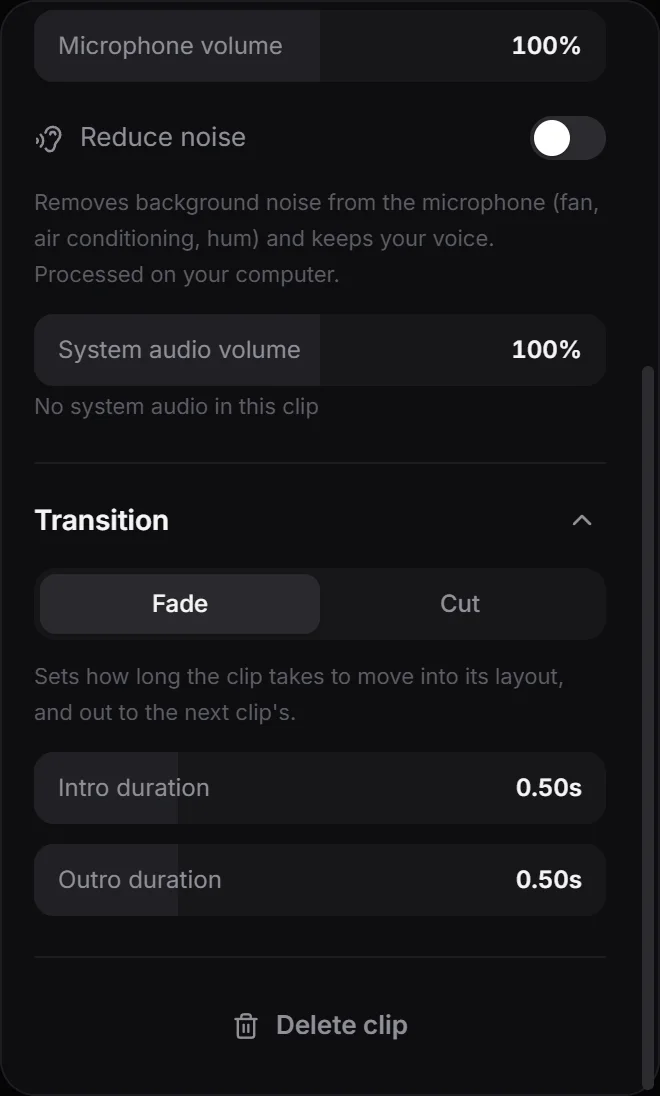
Each clip in a project can have its own look: its own padding, background or crop. The transition decides how the video goes from one clip’s look to the next.
Choose a transition
- Click a clip on the timeline.
- Open the Clip panel from the icons on the right, or right-click the clip and choose Clip settings.
- Under Transition, pick Fade or Cut.
Fade
Fade is the default. Around the point where two clips meet, OnScreen blends their padding, border radius and shadow, and fades one background into the other. When both clips come from the same recording, the crop moves smoothly as well.
Two sliders set how long it takes, from 0 to 2 seconds, with 0.50 s to start with:
- Intro duration: how long the clip takes to move into its layout.
- Outro duration: how long it takes to move out to the next clip’s layout.
The blend runs over the outro of the first clip and the intro of the second. If both clips look the same, you won’t see any change.
Cut
Cut switches to and from the clip at once, with no fade or layout animation. It works on both ends of the clip, and it wins over the neighbor: if either of two clips that meet is set to Cut, that change is a cut. The duration sliders hide while Cut is on.
Tip: To reframe in the middle of a recording, split the clip and give the second part a different crop or padding. Fade turns the change into a smooth move, and Cut makes it a jump.
Next step
Can't find what you need? Write to us