Audio and captions
Automatic captions
OnScreen writes captions from your voice right on your computer. Fix any line, then choose how they look and where they sit.
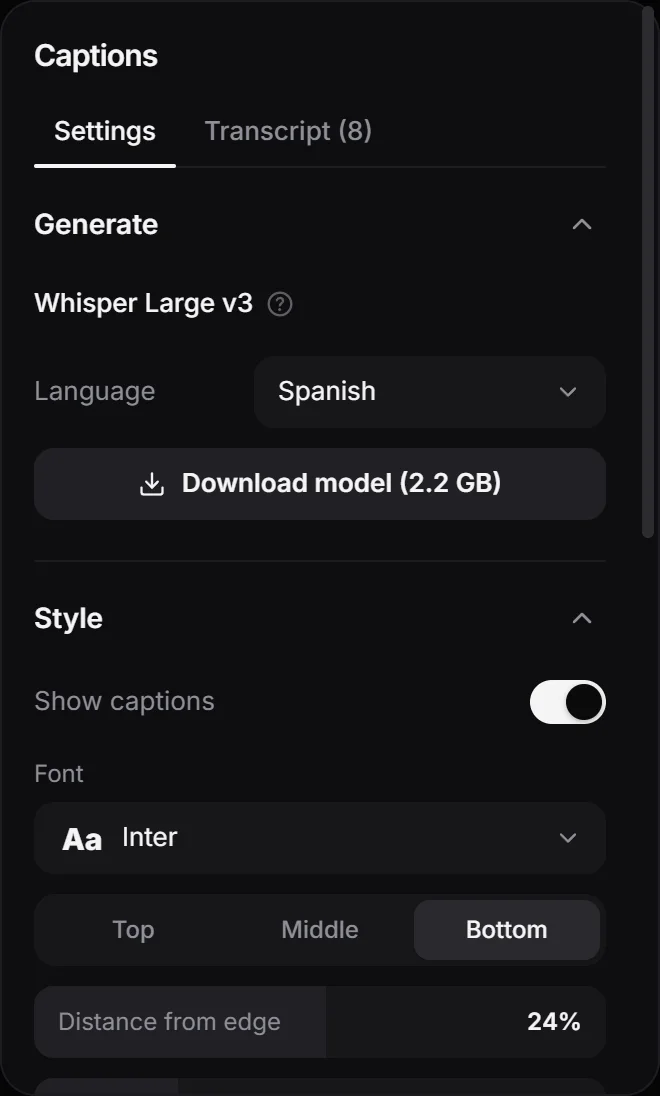
OnScreen transcribes your recording with Whisper Large v3, a speech recognition model that runs on your computer and uses the graphics card when it can. Your audio isn’t sent anywhere. It uses the microphone, or the camera or system audio if there’s no microphone.
Generate the captions
- Click the Captions icon in the panel bar to the right of the preview.
- The first time, click Download model (2.2 GB). OnScreen downloads it once, checks every file and shows Installed ✓. All your projects use that same copy.
- Pick the Language: Detect automatically, or Spanish, English, Portuguese, French, Italian or German. OnScreen remembers your choice.
- Click Generate captions and wait for the transcription to finish.
The captions appear on the video and in their own row at the top of the timeline.
Fix lines and words
The Transcript tab lists every line in order. Click a line, change the text and press Enter, or Esc to leave it as it was. Click the time on the left to jump to that moment, or the trash icon to delete the line.
If a line keeps the same number of words, each word keeps its timing, so the highlight stays in sync with your voice. If you add or remove words, OnScreen spreads them evenly across the line.
On the timeline, drag a line to move it, or drag its edges to change when it appears and disappears.
Look and position
The Settings tab has the rest:
- Show captions turns them on or off in the preview and in the exported video.
- Font: one included with OnScreen or any font installed on your computer.
- Top, Middle or Bottom. At the top or bottom, Distance from edge sets how far they sit from it.
- Size, Characters per line (28 by default, and lines never wrap), Uppercase and Text color.
- Spoken word marks the word being said with a Color or a Box. Choose None to turn it off.
- Translucent box puts a dark box behind the text, and Opacity sets how dark it is.
Tip: Changing Characters per line rebuilds the lines from the same words, so your corrections stay. Regenerate captions transcribes the audio again and replaces them.
Next step
Remove filler words using the text of your captions.
Can't find what you need? Write to us