Cursor and camera
Cursor
OnScreen records the cursor apart from the screen, so you can change how it looks and moves after you record. Make it bigger, smoother, or hide it while it's idle.
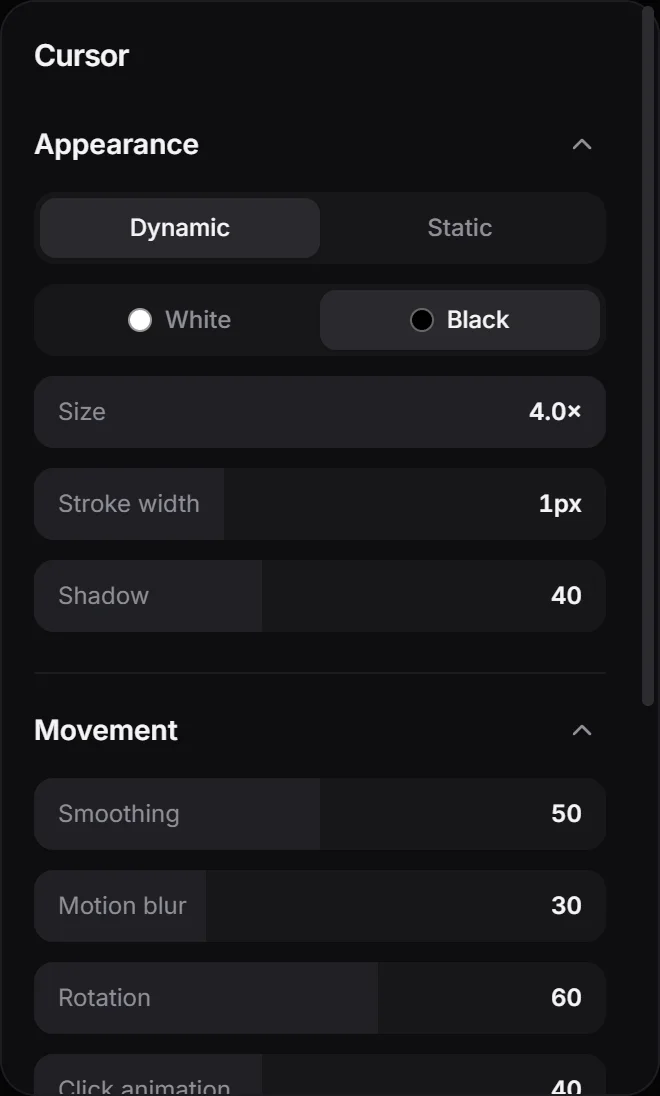
OnScreen records the screen without the cursor and saves the cursor’s movements and clicks separately. The editor draws the cursor on top of the video, so you can change it at any time, even long after recording. Open the Cursor panel to adjust it.
Appearance
- Dynamic shows the real cursor shape: text, hand, resize… Static always shows the arrow.
- White or Black sets the color of the cursor.
- Size goes from 0.5× to 4×. It starts at 1.5×.
- Stroke width and Shadow set the outline and the shadow around the cursor.
Movement
- Smoothing evens out jerky mouse movements. Clicks still land exactly where you clicked.
- Motion blur leaves a soft trail behind the cursor when it moves fast.
- Rotation tilts the cursor as it speeds up sideways and straightens it as it slows down.
- Click animation makes the cursor shrink while you hold a button down and spring back when you let go. Set it to 0 (Off) to turn it off.
- Cut off at end holds the cursor still for about the last second of the clip.
Visibility
- Hide when inactive fades the cursor out once it has been still for about 1.5 s, and brings it back just before it moves again.
- Hide cursor removes it from the video completely.
Settings for each clip
Cursor settings belong to each clip. The panel shows the selected clip, or the clip under the playhead if none is selected. Clips you record into a project start with the settings of the last clip.
- Reuse these settings copies this clip’s cursor settings to every clip after it. It appears when there are clips after this one.
- Set as default makes new projects start with these settings.
Next step
Set up your camera: bubble or split screen.
Can't find what you need? Write to us